TI-30XS for the GED Test: Calculator Rules & How to Practice
If you are preparing for the GED Mathematical Reasoning test, there is exactly one calculator in your future: the Texas Instruments TI-30XS MultiView. It is the only calculator the GED allows — and you never even hold it, because it appears on-screen inside the test itself. This guide covers the rules, the keys that earn marks, and how to practise before test day. If you want the full tour of this calculator first, start with our TI-30XS MultiView guide.
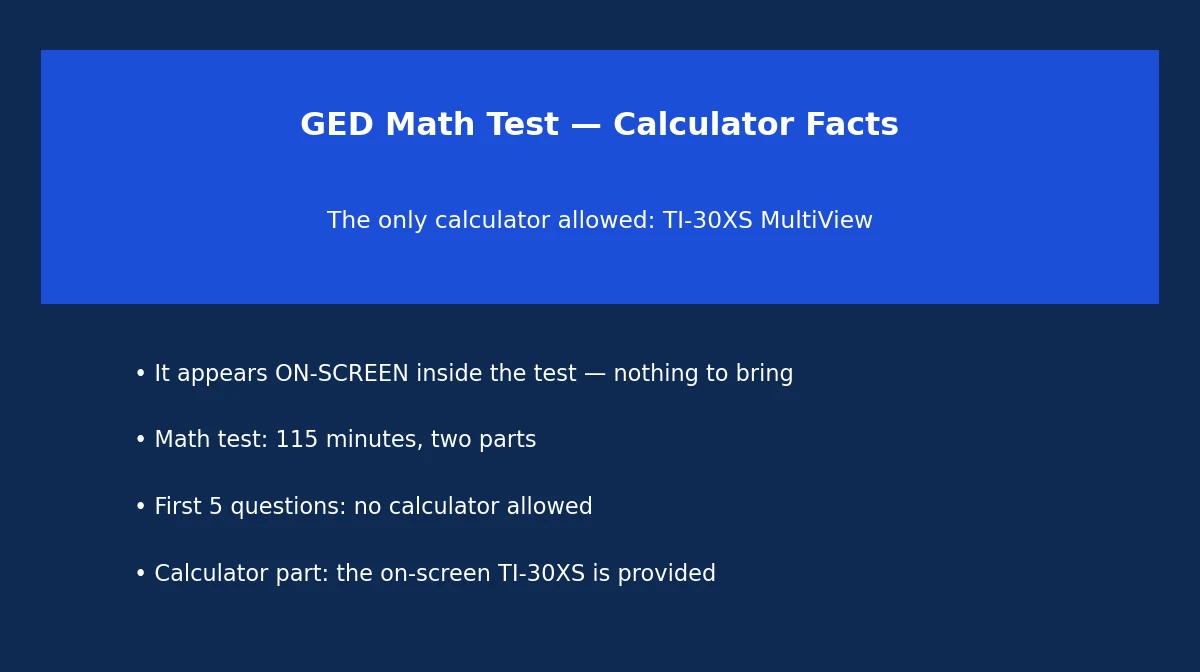
Quick answer: Yes, you can use a calculator on the GED Math test — but only the TI-30XS MultiView, and only the on-screen version built into the test. You cannot bring your own calculator. The calculator is available for most of the test, except the first 5 questions, which must be answered without one.
Can You Use a Calculator on the GED Test?
Yes — with strict rules. The GED Math test allows one calculator only, the TI-30XS MultiView, and it is provided as an on-screen calculator inside the testing software, for both the computer-based test at a test centre and the online test taken at home. You do not buy one, and you cannot bring your own handheld calculator into the test. The test itself runs 115 minutes in two parts: the first 5 questions are calculator-free, and after that the on-screen TI-30XS is available for the remaining questions. A formula reference sheet is also provided on screen, so the test rewards knowing how to work the calculator, not memorising formulas.
Meet the On-Screen TI-30XS
The on-screen calculator is the same TI-30XS MultiView you can buy in a shop: same keys, same layout, same MathPrint display that shows fractions stacked the way they look in a textbook. The only difference is that you click keys with a mouse instead of pressing them — which is slower, and exactly why practice matters. The GED’s own website offers a free calculator tutorial that walks through the on-screen version, and ten minutes with it before test day removes all the surprises. Pair that with hands-on practice on the physical layout using our TI-30XS online guide, and the test-day calculator will feel familiar instead of foreign.
The 6 Skills That Cover Most GED Questions
- Fractions: the [n/d] key builds a fraction template; GED questions lean heavily on fraction arithmetic, and the calculator keeps answers as exact fractions instead of messy decimals.
- Fraction ↔ decimal toggle: [2nd] [f↔d] flips any result between a fraction and a decimal, so you can match the answer format the question wants.
- Percents: percent problems (discounts, tax, interest) are GED staples — enter them as decimals (25% = 0.25) or use the % key, and practise both ways.
- Powers and roots: the [x²] key, the [^] key for other powers, and [2nd] [√] for square roots cover the algebra questions.
- Order of operations: the calculator follows it automatically, but parentheses are yours to add — most wrong GED answers come from a missing pair of parentheses, not from hard maths.
- The [table] key: for questions that hand you a function or a pattern, the table shows many values at once instead of one calculation at a time.
Worked Example 1: A Percent Discount
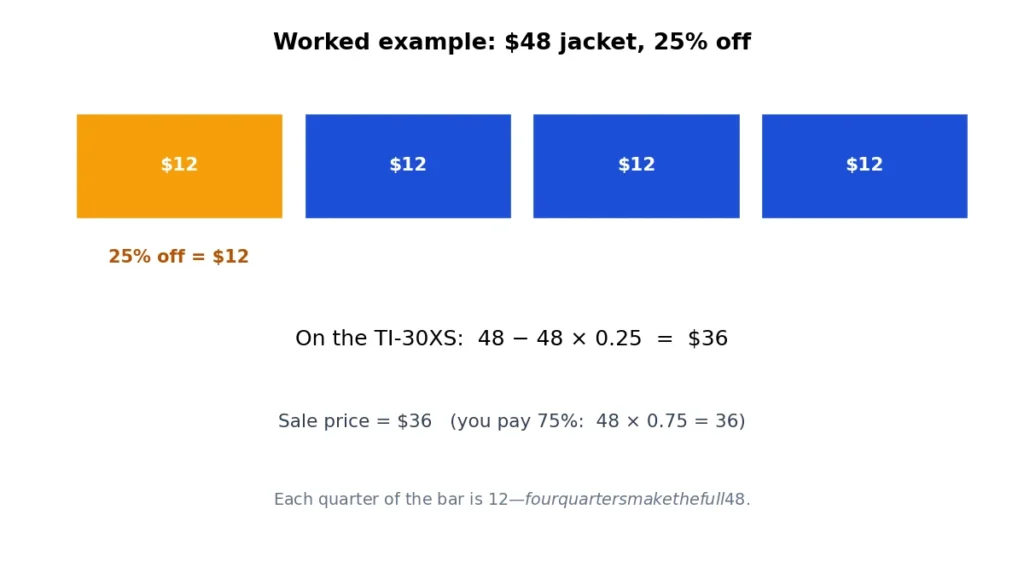
A jacket costs $48 and is on sale for 25% off. What is the sale price? On the TI-30XS, type 48 − 48 × 0.25 and press ENTER: the discount is $12, so the display path gives 48 − 12 = 36. The jacket costs $36. The shortcut worth memorising: paying 75% is the same maths in one step — 48 × 0.75 = 36.
Worked Example 2: A Fraction of a Group
In a class of 28 students, 3/4 passed the practice test. How many students passed? Build the fraction with the [n/d] key (3, down arrow, 4, right arrow to step out of the fraction), then multiply by 28 and press ENTER. The TI-30XS answers 21 — an exact whole number, no decimal rounding to worry about. This is the daily rhythm of GED maths: one fraction, one multiplication, one exact answer.
Common Mistakes on Test Day
- Expecting to bring a calculator. You cannot — and arriving ready to rely on your own handheld wastes the first minutes of the test. Practise the on-screen version instead.
- Burning time on the first 5 questions. They are deliberately calculator-free and usually quick; if one stalls you, mark it, move on, and protect your time for the calculator section.
- Typing percents as whole numbers. 25% entered as 25 makes answers 100 times too big; convert to 0.25 first, or use the % key.
- Forgetting the toggle key. When an answer choice is a decimal and your display shows a fraction (or the reverse), [2nd] [f↔d] converts it instantly — students lose marks leaving the right value in the wrong format.
- Skipping the official tutorial. The free GED calculator tutorial takes minutes and shows exactly where every key sits on screen.
Frequently Asked Questions
Is the TI-30XS really the only calculator allowed on the GED?
Yes. For the GED test, the TI-30XS MultiView is the only approved calculator, and it is provided on-screen inside the test software. No other calculator — including the TI-84 — is permitted.
Do I need to buy a TI-30XS for the GED?
No. The calculator is built into the test and appears on screen, so there is nothing to buy or bring. Buying one for home practice is optional; practising the layout is what matters.
Can I use a TI-84 on the GED test?
No. Graphing calculators such as the TI-84 are not allowed on the GED. Only the on-screen TI-30XS MultiView is provided.
Which part of the GED Math test allows the calculator?
The Math test has 115 minutes in two parts. The first 5 questions must be answered without a calculator; the on-screen TI-30XS is available for the rest of the test.
Is the on-screen calculator the same as the handheld TI-30XS?
It has the same keys, layout and functions as the handheld TI-30XS MultiView. The difference is that you click the keys with a mouse, which is slower — one more reason to practise beforehand.
How should I practise for the calculator section?
Use the free calculator tutorial on the official GED website to learn the on-screen layout, then drill the core skills — fractions, percents, powers, roots and parentheses — until the key sequences feel automatic.
Your Next Step
The calculator will not decide your GED result — your familiarity with it will. Learn the layout with our TI-30XS MultiView guide, run the official on-screen tutorial once, and spend the rest of your prep time on the maths itself. On test day, the TI-30XS should feel like a tool you already own. And for extra practice with a graphing calculator, try the free TI-84 calculator online.