TI-30XS Table Mode: How to Build a Function Table
One key on the TI-30XS MultiView quietly does the work of a whole page of repeated calculations: [table]. Give it a function, and it lists the outputs for as many inputs as you want — the fastest way to spot patterns, solve equations by inspection, and check graph questions without a graphing calculator. This guide walks through building a table step by step. It is one chapter of our full TI-30XS MultiView guide.
Quick answer: Press [table], type your function using the [x] key, press ENTER, set the Start value and the Step, leave Auto selected, and press ENTER again. The TI-30XS shows a two-row table of x and f(x) values that you can scroll through.
What Table Mode Actually Does
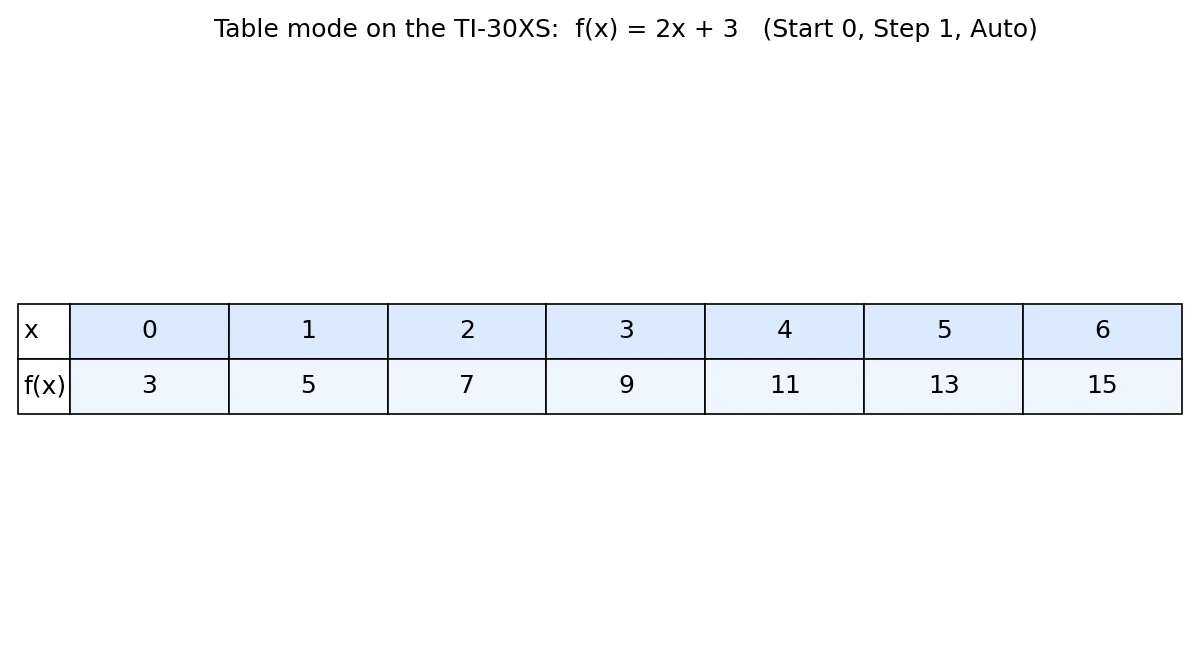
A function table answers the question “what does this rule give for lots of different inputs?” If f(x) = 2x + 3, the table shows 3 when x is 0, 5 when x is 1, 7 when x is 2, and so on — every pair worked out for you. On paper that is seven separate calculations; in table mode it is one setup. Teachers set table questions because they test whether you understand what a function does, and the TI-30XS turns them into reading exercises instead of arithmetic marathons.
How to Build a Table in 4 Steps
- Press [table]. The screen asks for your function.
- Type the function using the [x] key for the variable — for example 2 [x] + 3 — then press ENTER.
- Set the table: Start is the first x value, Step is how much x grows each row (1 is the usual choice). Leave Auto highlighted so the calculator fills the rows itself, and press ENTER.
- Read and scroll: use the arrow keys to move down the table and see more values.
Two settings carry the whole feature: Start chooses where the table begins, and Step chooses the spacing — it can be positive or negative, but never zero. Everything else on the setup screen follows from those two numbers.
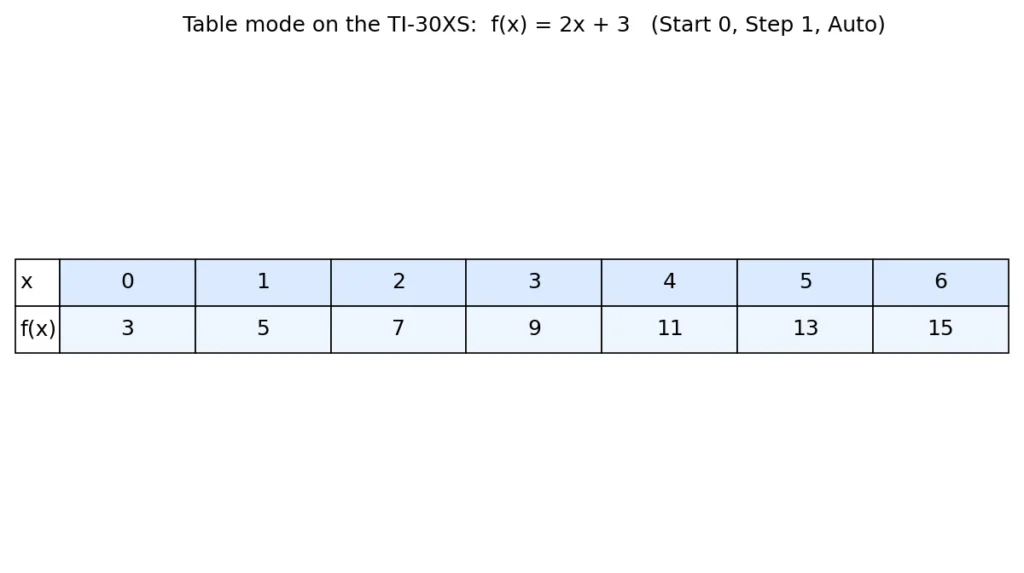
Worked Example: Reading f(x) = 2x + 3
Following the steps above with Start 0 and Step 1 produces x values 0 to 6 and outputs 3, 5, 7, 9, 11, 13, 15. Two habits make tables genuinely useful in tests. First, read across both rows together — each output belongs to the input directly above it. Second, watch the output’s own pattern: here it climbs by 2 every row, which is the “2x” in the function showing itself. If your table’s pattern looks broken, the function was probably typed wrong — a free error check built into the method.
Auto vs Ask-x: The Two Ways to Fill a Table
| Setting | How it fills the table | Reach for it when |
|---|---|---|
| Auto | The calculator generates every row from your Start and Step | You want a run of evenly spaced values — patterns, graphs, checking |
| Ask-x | You type each x value yourself, one at a time | The question names specific inputs, like “find f(−2), f(0.5) and f(10)” |
To use Ask-x, choose it on the setup screen instead of Auto, then type an x value, press ENTER, read its output, and repeat. It is slower, but it answers exactly the inputs the question asked about — no scrolling through rows you do not need.
Worked Example: Finding a Vertex with Ask-x Thinking
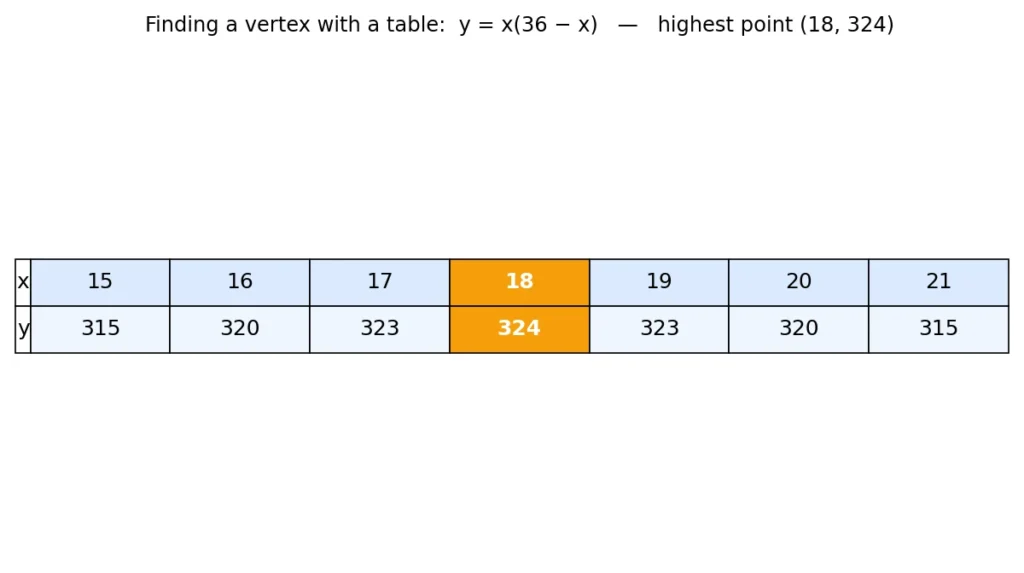
Tables also hunt for highest and lowest points. Take y = x(36 − x), a parabola. Build a table starting near x = 15 with Step 1: the outputs run 315, 320, 323, 324, 323, 320, 315 for x = 15 to 21. The values climb, peak and fall symmetrically — the peak row, x = 18 with y = 324, is the vertex. To zoom in on a peak, rebuild the table with a smaller Step around the interesting x; each rebuild narrows the search, the same trick you would use on graph paper, minus the graph paper.
Solving Equations by Reading a Table
The same idea solves equations. A charity has $3,600 and gives $450 to a food kitchen every month; the money left after x months is y = 3600 − 450x. When does it run out? Build the table from Start 0, Step 1 and read down the y column: it reaches 0 at x = 8. Eight months — read straight off the table, no algebra required. Any “for what input does the output equal…?” question is this same move: build the table, find the row, read across.
Common Mistakes in Table Mode
- Setting Step to 0. The step must move — zero (or leaving a stray value in) breaks the table or fills it with repeats.
- Typing the function without the [x] key. A table needs a variable; a function typed with plain numbers is just a calculation, and the calculator has nothing to vary.
- Forgetting ENTER after the function. Until you press ENTER, the setup screen never appears and the table never builds.
- Reading the wrong row pairing. Outputs sit under their inputs — scrolling one row too far pairs every answer with the wrong x.
- Expecting complex fractions inside functions. Table functions handle up to one level of fractions; anything deeper needs simplifying first.
Frequently Asked Questions
Where is the table key on the TI-30XS?
The [table] key sits in the top rows of the keypad. Press it once and the calculator asks for a function; enter it with the [x] key, press ENTER, then set Start and Step.
What do Start and Step mean in table mode?
Start is the first x value in the table. Step is how much x increases from row to row — 1 gives consecutive values; it can be negative to count downwards, but it cannot be zero.
What is the difference between Auto and Ask-x?
Auto fills the table automatically from your Start and Step. Ask-x lets you type individual x values and see each output one at a time, which suits questions that name specific inputs.
Can the TI-30XS table use fractions?
Yes, within limits — functions in the table can include up to one level of fractions. For deeper fraction work, the [n/d] key on the main screen is the better tool.
How do I solve an equation with the table?
Enter the expression as the function, build the table, and find the row where the output matches the value you need; the x in that row is your solution.
Why does my table show the same value in every row?
Almost always because the function was typed without the [x] variable, or the Step is set to 0. Re-enter the function using the [x] key and check the Step value.
Keep Going
Table mode is the TI-30XS feature students discover last and use most. If you are revising for the one test where this calculator is compulsory, our TI-30XS GED guide shows how the table key earns its keep there — and the full key-by-key tour lives in our TI-30XS MultiView guide.
And when you need the full-size machine itself, the free TI-84 calculator online is open in your browser any time.